

I have a card storage box where the cards keep slumping over. The inside is 12 x 3 x 4 inches, which is a lot of empty space when the box isn’t full, and half-full rows of cards just lean and bend. The obvious fix is something that pushes on the cards from both ends and holds them upright. So I decided to design one and 3D print it.
I am a software developer and do not work professionally with any sort of CAD or CAD-related tools. I’m able to do basic designs and print them using my Bambu H2C but that’s pretty much it. This was going to be something even more advanced.
The twist is that I had never really used Autodesk Fusion at an intermediate level before, so I asked Claude to teach me as I went. This post is about how that went, what worked, and where it fell on its face. Here are the prompts that started it all that got me to the step-by-step instructions.
Take on the role of an expert in 3D modeling and CAD. You’re also an excellent teacher who can even teach 5 year olds how to use CAD software. I have a lot of ideas that I want to create using a 3D printer.
Then…
I want to make a device that will help hold trading cards up in a card box. Trading cards, if not held back by anything, will tend to fall and lay flat in a card box.
Finally…
I don’t want to slide anything under the cards. I was thinking there could be two flat ends, about the size of a trading card, but thicker than a trading card. Then those flat ends can snap into a rod that can extend short and long. I want the rod to be a square/rectangle rod with a button or switch to press that will allow the use to shorten or extend the rod, but when the button/switch is not pressed, then the rod holds its length.
Why I tried an AI tutor for CAD
I’ve learned plenty of tools by reading docs and watching videos, but CAD software is a different kind of overwhelming. There are a hundred buttons, every one of them has a dialog, and I don’t know the vocabulary well enough to even search for what I need.
Claude acting as a tutor seemed like a good fit for that. I could describe the project, get a plan, and ask “why” every time something didn’t make sense. That last part ended up mattering more than I expected.
The project
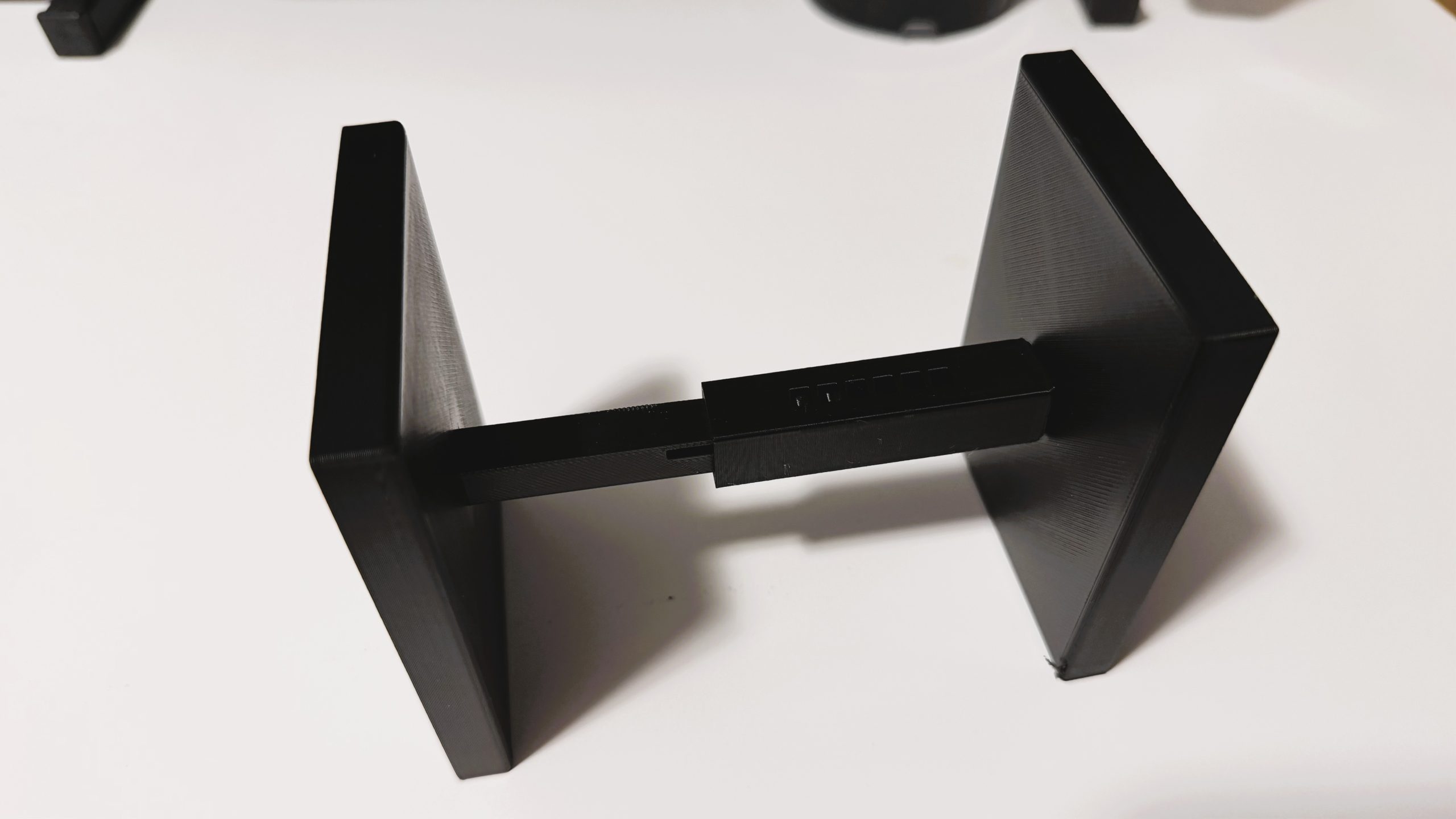
The design is a telescoping spacer made of three parts:
- Two card-sized end plates that push on the cards from each end
- A square telescoping rod between them that sets the length
- A locking mechanism so the length stays put
The design didn’t start there. Claude’s first suggestion was an L-shaped prop that slides under the cards. I didn’t like it, so I described the telescoping rod idea instead. Then the AI proposed a spring tongue cut into the inner bar, with a bump that clicks into a row of holes in the outer tube. That became the first version.
How the lessons were structured
Claude broke the project into lessons, and that structure is the main reason this worked:
- Setup and the end plate: units, user parameters, sketch, extrude, cut a socket, fillet
- Outer tube: wall and bore parameters, hollow it with a cut, add a plug, cut one lock hole, repeat it with a rectangular pattern
- Inner bar: slide clearance, a spring tongue freed with two simple rectangle cuts, a bump, fillets and a chamfer
- Assembly: a second plate, rigid joints, a slider joint with travel limits, and measuring the result
- Print prep: a short test version made by changing parameters, STL export, orientation on the bed, slicer settings
Parameters are just variables
This is the part that clicked for me as a developer. Fusion’s user parameters behave like named variables in code. You define plate_w = 70 mm once, and every feature that uses it updates when you change it. No hunting through sketches to edit the same number in five places. If you can think in constants, you can think parametrically.
What a good step looked like
A few habits in how Claude wrote its instructions made a big difference:
- Numbered steps with one action each, using parameter names instead of raw numbers. Something like “create a user parameter named plate_w with the value 70 mm.”
- A “how to check it worked” note after each stage. For example, sketch lines turn black when they’re fully constrained, so you know you’re done.
- Explaining why, not just what. The extrude arrow points along the face normal, which is why a cut sometimes needs a negative distance. Once I knew that, I stopped being confused by it.
- Breaking a hard step into easier ones. At one point I said I wasn’t sure how to do an L-shaped cut. Instead of explaining it harder, Claude replaced it with two plain rectangles and plain numbers. Same result, way less pain.
- Test small before printing big. Change three parameters, print a short slice, and tune the clearances before committing to a full-size print.
It also asked me for screenshots, then told me specifically what it could and couldn’t see in them. When words weren’t enough, it circled the right face on my screenshot, like picking the closed end face of the tube.
Where it went wrong
This is the section I think matters most, because Claude made real mistakes and I’d be lying if I said it was smooth.
The menu item that wasn’t there
I couldn’t find New Component. Claude first gave me three possible menu paths, none of which matched what I was seeing, and then admitted it couldn’t actually see my interface. After I sent a screenshot of my right-click menu, it searched the web and found that newer versions of Fusion have Part, Assembly, and Hybrid design types, and that Part designs don’t offer New Component. I switched to Hybrid and moved on.
I’m on Fusion version 2706.1.14. The lesson here is that software menus change between versions, so an AI’s memory of the UI can be stale. Treat its menu paths as hypotheses, not facts.
The joint that kept snapping back
This one ate the most time. The slider joint showed a red icon with the message “Distance conflict due to Minimum value limit,” and after every OK the bar jumped right back to the same wrong spot.
A screenshot of the Browser panel showed what was going on. Both end plates were grounded, which you can spot by the anchor icons, and that pinned the whole assembly in place. Along the way I also learned a few things:
- “Preview Limits” only moves one part
- “Drive Joints” and “Animate Joint Relationships” move the whole assembly
- Deleting a rigid joint made a plate fall back to its original spot, which showed me that joints position parts, while rigid groups just freeze their current positions
Joints and assemblies were easily the hardest part of the whole project. Modeling the parts was easy. Making them move correctly was not.
AI got the orientation wrong
For the slider joint, Claude assumed the tube’s open end was at the bottom. It wasn’t. I corrected it (“the opening for the tube is at the top”), and Claude owned the mistake and redid the joint instructions. That’s the right way for it to handle it, but it’s a good reminder that I need to check the work instead of trusting it.
The support question
In my slicer, I spotted a possible overhang. Claude had told me earlier that no supports were needed, but the tube’s plug does overhang when the tube lies on its side. The fix is to print the tube upright, open end down, with a brim.
Smaller slips
A few other things got corrected along the way: a wrong clearance number, a wrong measurement reference for the bump, and a misread flip icon. A couple of other hiccups were more about me not knowing the tool yet. A pocket extrude went the wrong way and needed a negative distance or a flipped direction. And the pattern tool hides its distance and quantity in floating boxes in the viewport instead of the dialog, so I used the preview to see whether the number meant spacing or total length. The formula that fixed it was hole_pitch * (hole_count - 1).
What I’d tell someone else trying this
- An AI tutor is strongest at structure. Breaking a project into lessons, naming parameters, explaining concepts, and proposing mechanisms are where it shines. It even recognized a ratchet from a hand sketch of mine, which I’ll get to below.
- It’s weakest at your exact screen. Expect the UI to differ from its instructions.
- Screenshots are the bridge. Specific, honest feedback like “I don’t see Distance Type” got me much better answers than vague complaints.
- Check everything. The process worked because both sides verified results with measurements, previews, and section views instead of trusting the instructions.
- Parametric thinking transfers well from programming. If you write code, you already have a head start.
Final product
See below for an image of the completed printed item put together:
What’s next
Once the first version was modeled, I drew a hand sketch of a sawtooth ratchet with a pinch release, because I thought it would be a better locking mechanism than the spring tongue. Claude identified it as a ratchet and pawl and wrote a follow-up lesson for it. That lesson is untested so far, so consider it a teaser for now.
Next up is the ratchet redesign! Hope it goes as well as these other lessons did.



No Comments